
- Training
- Service
- Promotion
- Schedule
- Testing Center
- News
- Contact
5/5/2020


Bottom Line: Learn 4 different ways to fix date data type errors in Power Query, including with locale, regional settings, and custom formulas with Column From Examples.
Skill Level: Intermediate
Sometimes in Power Query, when you attempt to format data as a date, you will receive error messages. This is because Power Query is unable to recognize the data. The most common occurrence for this is when the original format of the date is from a different region.
The U.S. uses the MM/DD/YYYY format for dates, while most of the rest of the world uses DD/MM/YYYY. This can create issues with date conversions in Excel and Power Query.
There are four different ways to address this issue of date errors.
The first way to fix a date error that stems from location differences is to choose the Using Locale setting in the Data Type drop-down menu for whichever column/query has the errors.
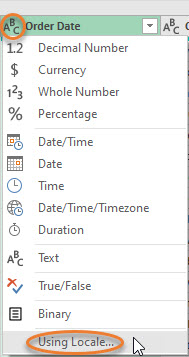
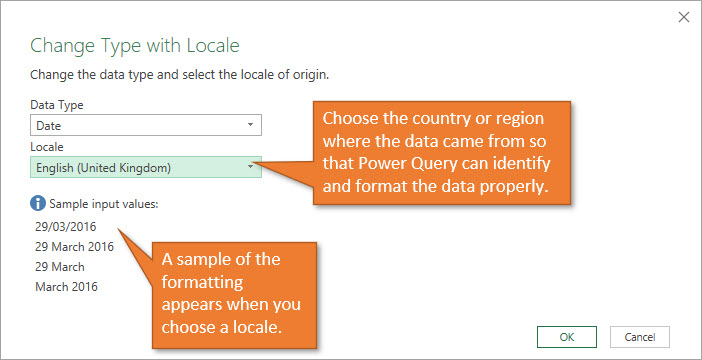
This formatting will need to be done on each query that returns errors for date columns. If you are working with a query that has several date columns or a file with several queries, then you might want to use the next tip instead.
You can also change the regional settings for your entire file. To do this:
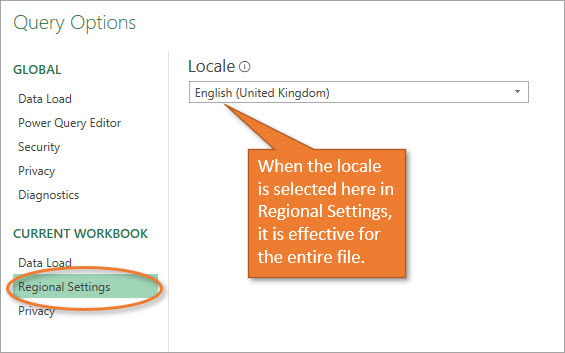
For any queries in this file that have particularities to a region, now the formatting will show correctly when you change the data type of a column to Date. You do NOT have to use the Using Locale option explained in #1 above.
Note: This setting stays with the file. So if you share the file with someone from another country they won't have to change the locale to match the source data. If they add new queries with dates in their local format, then they will need to change this or use the Using Locale option (#1 above).
If you are looking to apply regional settings to more than just one file at a time, you can change the region settings on your operating system.
An example of this might be if you work remotely from one country, but the files you deal with each day come from a company in another country. Instead of changing the regional settings for each individual file, you're essentially telling your computer that you are located in the other country. That way, it will display all of your data in the formatting of that region/locality.
To change your settings in Windows:
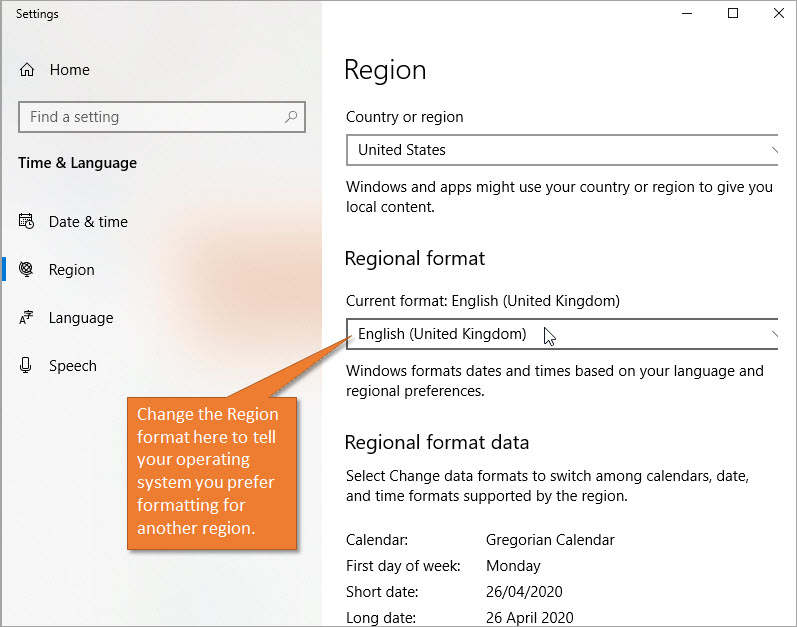
Keep in mind that changing this setting could have implications in other applications besides Excel. For example, your system clock might convert to 24-hour (military) time formatting, etc.
This last fix is for dates that are oddly formatted. For example,
it's not just a matter of American vs. British preferences in formatting, but maybe you exported data from a system that spit out the data in a funky way.
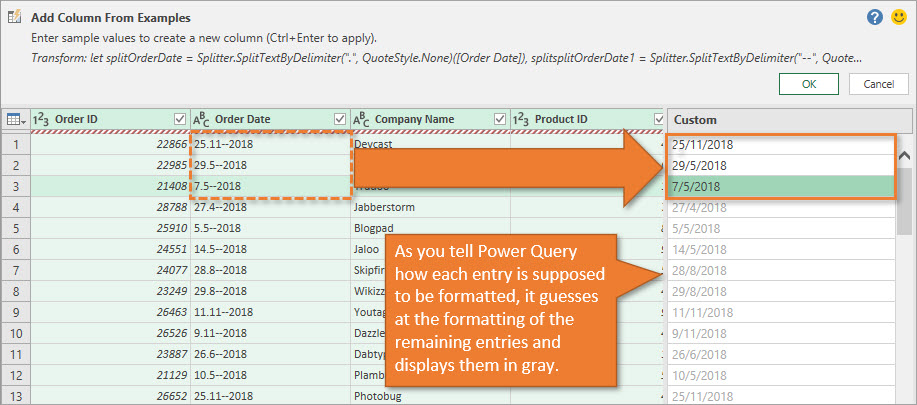
If that's the case, you can use the Column From Examples feature in Power Query to do a little magic. This feature essentially does pattern recognition based on examples of how you would change the dates from the current format to your desired format.
To use the example from my video, if my dates are currently formatted as [25.11–2018, 29.5–2018, and 7.5–2018], I can tell Power Query that those dates should be [11/25/2018, 5/29/2018, and 5/7/2018]. From there, the Columns From Examples feature will guess the remainder of the data because it can pick out the pattern in my changes.
To use the Column From Examples feature:
Now that you have a date column in the correct formatting, you are welcome to remove the old column, if you wish.
Source: https://www.excelcampus.com/powerquery/power-query-date-errors-settings/

12/11/2025


